

Find the files the app creates
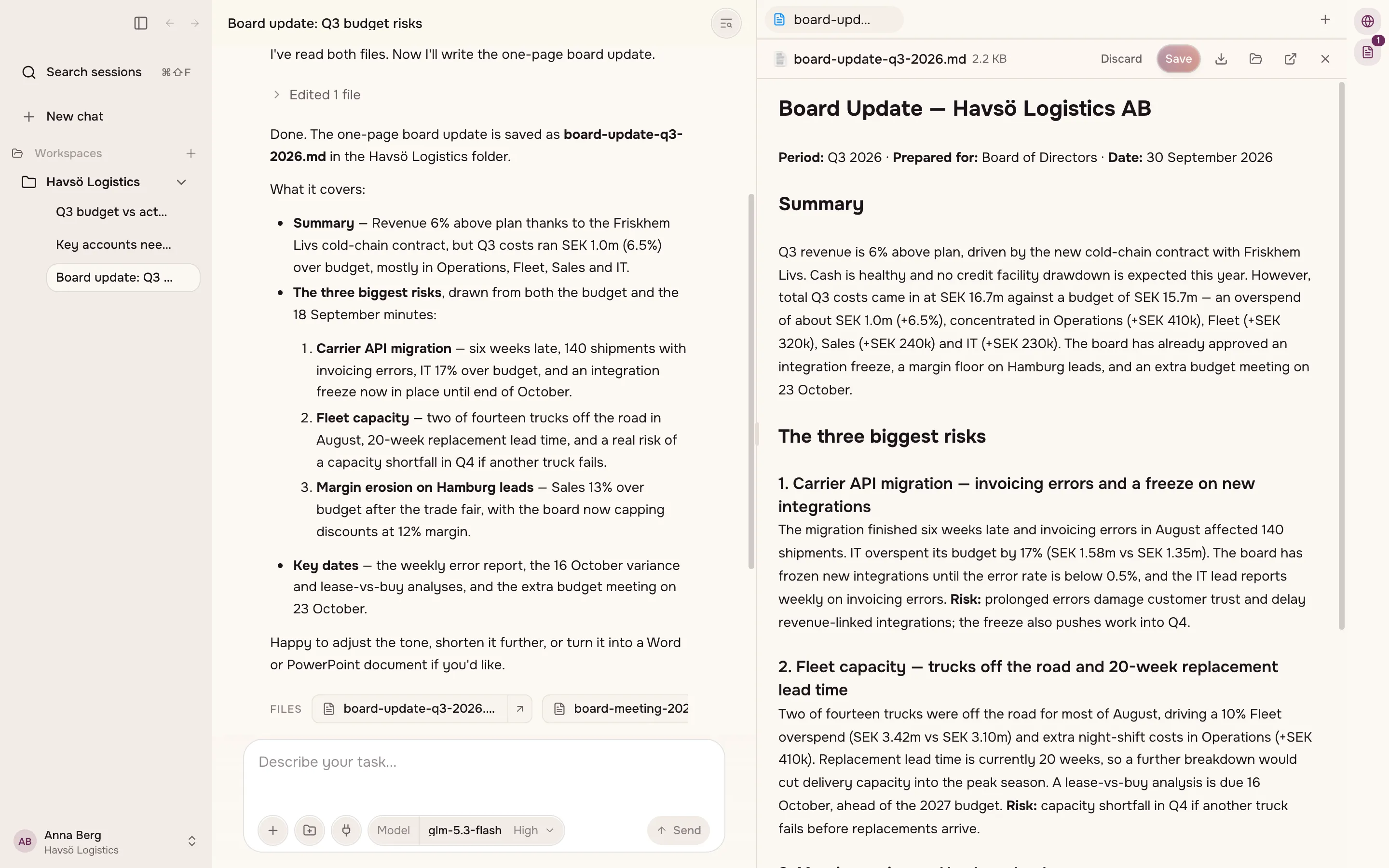
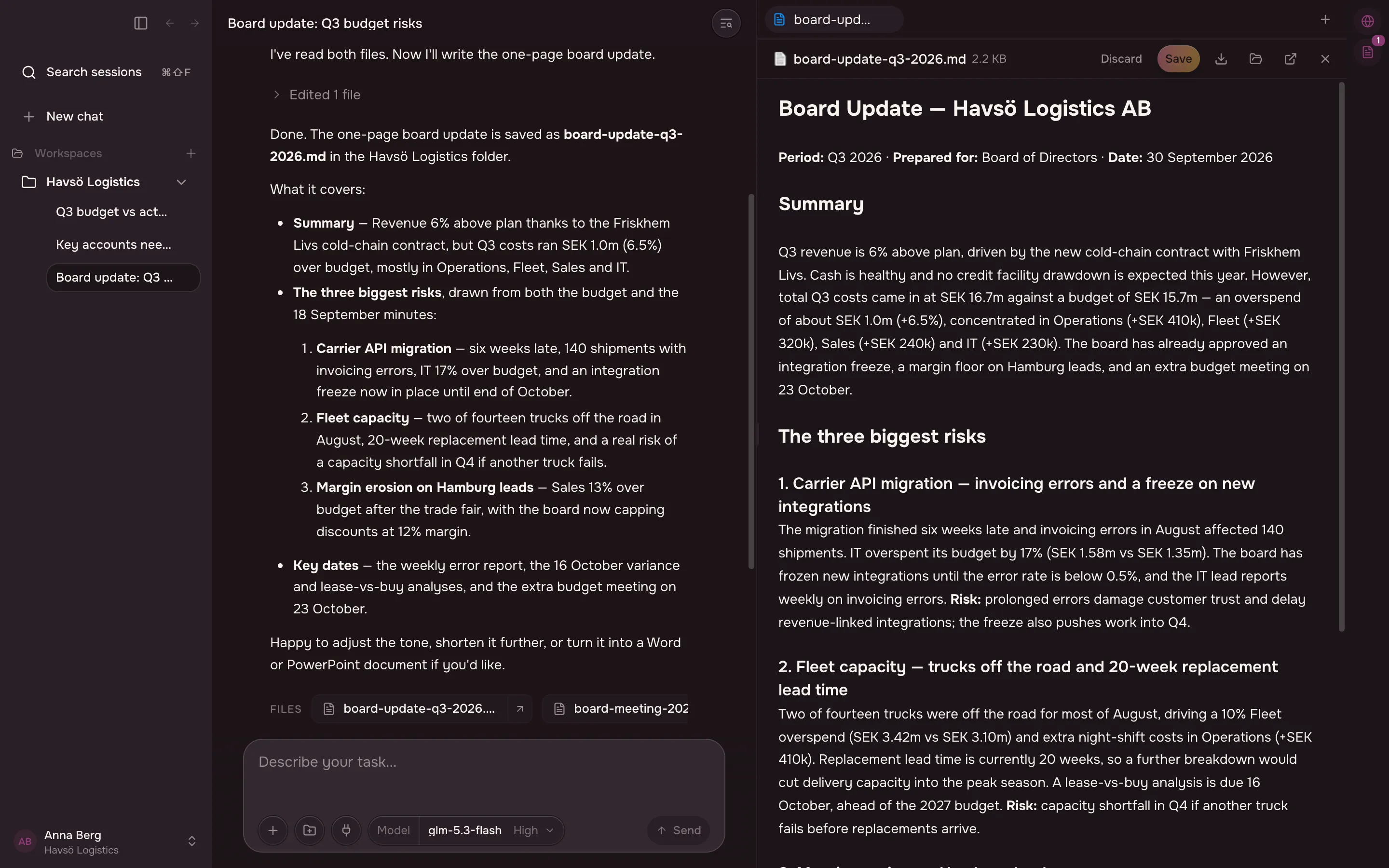
An artifact is a file the app creates for you.
Know which kinds it makes
Section titled “Know which kinds it makes”The app labels each artifact by kind:
| Document | A text document, including Word files. |
| Presentation | Slides, including PowerPoint files. |
| Spreadsheet | A sheet you can open row by row and column by column. |
| A PDF. | |
| Page | A web page. |
| Markdown | Plain Markdown. |
| Text | Plain text. |
| Image | An image. |
| Video | A video file. |
| Audio | An audio file. |
| File | Anything that does not fit the kinds above. |
Find your artifacts
Section titled “Find your artifacts”Each workspace keeps its own list. The list stays empty until the app creates something.
Preview a file before you open it
Section titled “Preview a file before you open it”You can preview Word and PowerPoint files inside the app. The preview is close to the real file, but not exact:
- text can be cut off where it runs past the edge of its box
- page-number fields show as ‹#›
- in PowerPoint, some drawings do not appear
- in Word, table styles do not apply their shading, and page breaks are approximate
Edit an artifact
Section titled “Edit an artifact”You can change an artifact in the app and choose Save changes.
Publish an artifact
Section titled “Publish an artifact”Publishing gives an artifact a link other people can open. An artifact belongs to you until you publish or share it, and nobody is told when you do. Tell your colleagues yourself where to find it.
The app shows where an artifact stands:
| State | What it means |
|---|---|
| Not published | Only you can open it. |
| Published · version N | The link works, and shows version N. |
| Changed since version N | You have edited it since you published. Publish again to update the link. |
| Withdrawn · version N | The link no longer works. |
If publishing fails
Section titled “If publishing fails”Two limits apply. One artifact cannot be larger than a set size. All of your organisation’s published artifacts together cannot exceed a larger one.
The app names the size and the limit when it refuses. Make the file smaller — for example by compressing images in it — and publish again.