

Ask for something
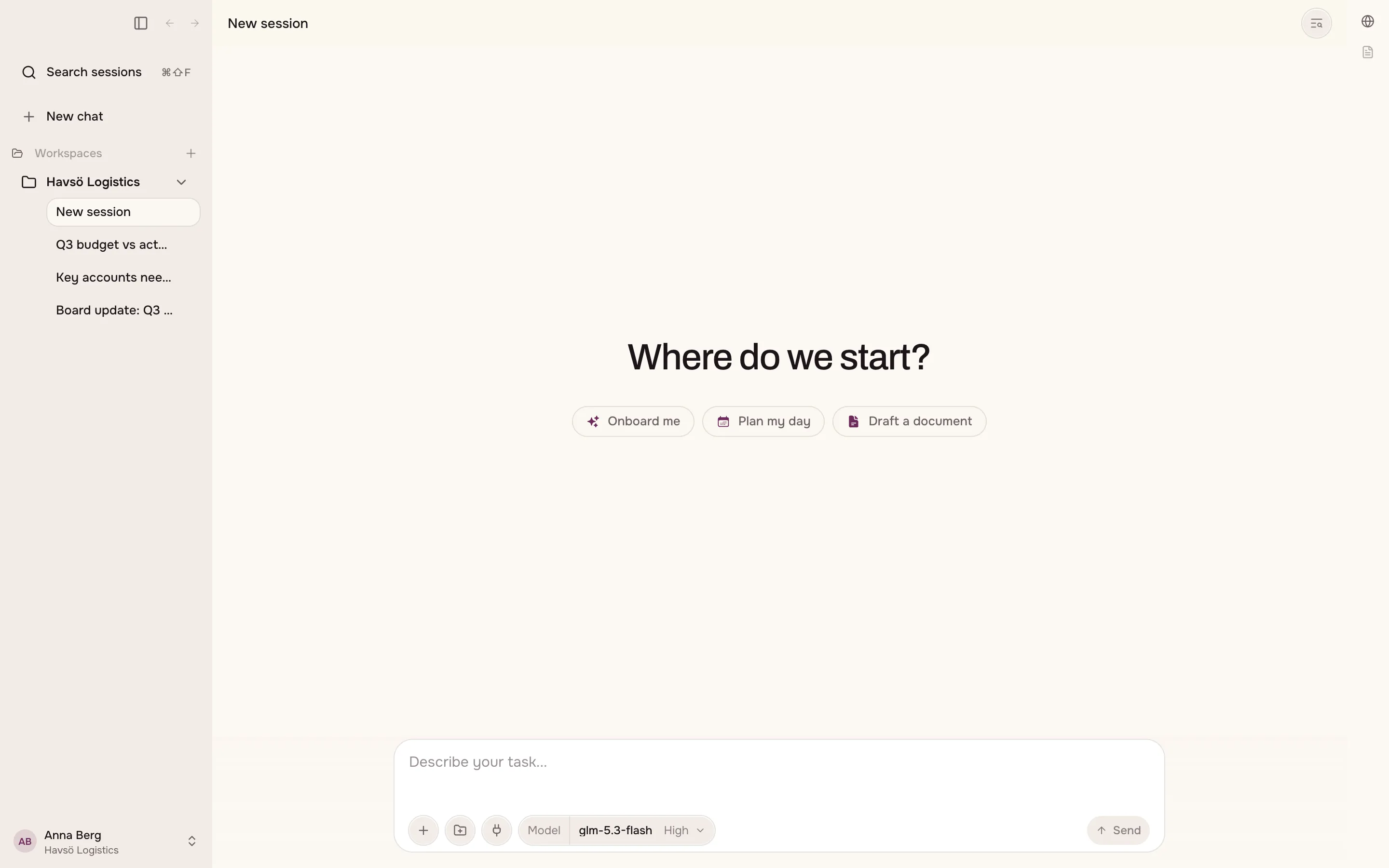
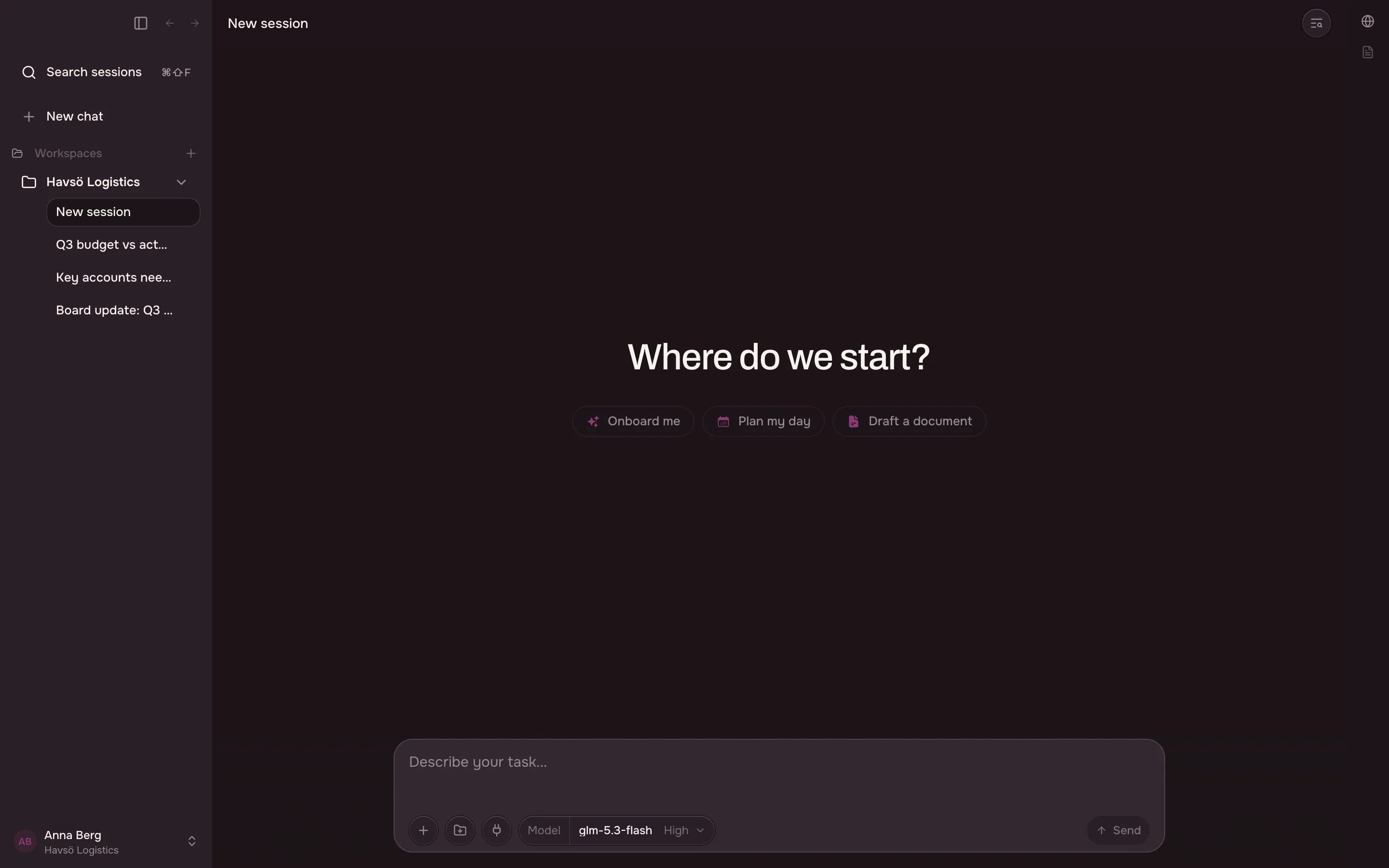
You ask the app to do something by describing the task in the field at the bottom of the window.
Attach a file to your task
Section titled “Attach a file to your task”You can attach files to a task, or drop them straight onto the window.
The app accepts PDFs, images, text, Word, PowerPoint and Excel.
Not every model reads every type. If the current model cannot read what you attached, the app tells you before you send it. See choosing a model.
Keep conversations apart with sessions
Section titled “Keep conversations apart with sessions”A session is one conversation. You can keep as many as you like, and search across them.
A new session is called New session until there is something to name it after.
Organise your sessions
Section titled “Organise your sessions”| Action | What it does |
|---|---|
| Pin | Keeps a session at the top of the list. |
| Archive | Moves a session out of the list without deleting it. You can bring it back. |
| Delete | Removes the session and its messages. This cannot be undone. |
| Split view | Opens two sessions side by side. |
Use Archive when you are finished with a session but might want it later. Use Delete only when you are sure.
Choose between interrupting and waiting
Section titled “Choose between interrupting and waiting”Sometimes you want to add something while the app is still working. When you do, the app asks you to choose:
| Choose | What happens |
|---|---|
| Send now | The app changes course straight away. |
| Queue | The app finishes the current task first, then reads your message. |
Choose Send now when the app is going the wrong way. Choose Queue when you want the current task to finish.
Start from a suggestion
Section titled “Start from a suggestion”An empty workspace suggests a few tasks instead of showing you a blank field. One suggestion plans a workflow you can reuse. Another automates a task in the built-in browser.
You can ignore the suggestions and write your own task.